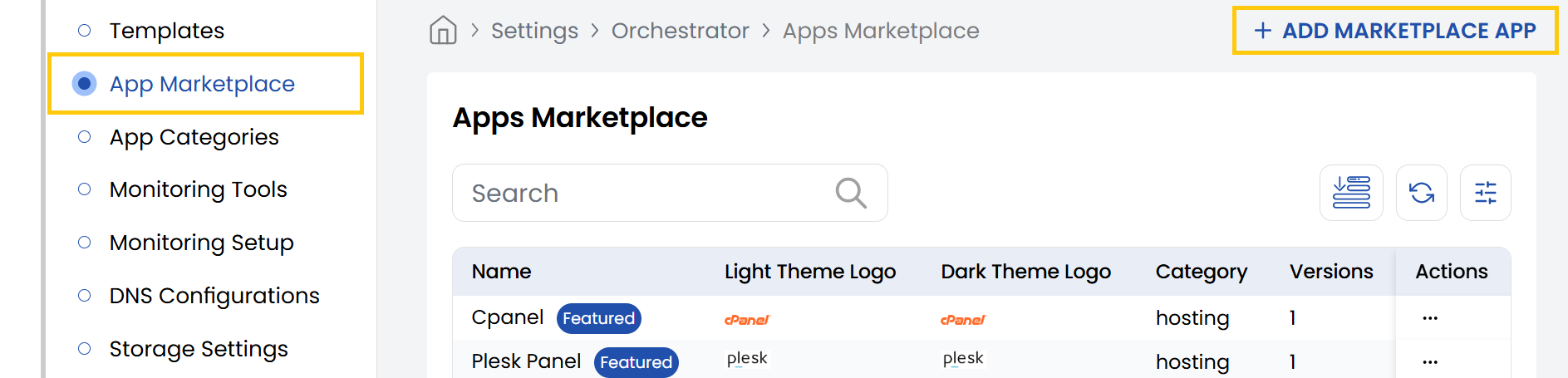
Apps Marketplace
App Marketplace in Stack Console
The Marketplace Apps are deployable applications that users can discover, install, and manage. These apps can be categorized, versioned, and configured using environment variables.
- From the left-hand side of the page under the Orchestrator section, click on App Marketplace to view the list of marketplace apps.
- To create a new marketplace app, click on Add Marketplace App.
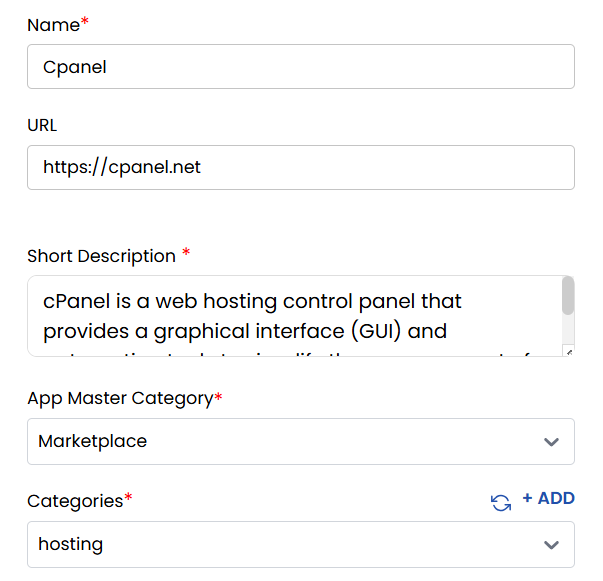
- Provide a name and add a brief description of the marketplace app. Enter the site URL for the marketplace app.
- You can create market place app like cPanel, Plesk, WordPress, CloudPanel, Zabbix, Odoo, MariaDB, FreePBX, NextcloudAIO, GitLab.
- Select master category (community, marketplace, etc.) and then select the app category for marketplace.
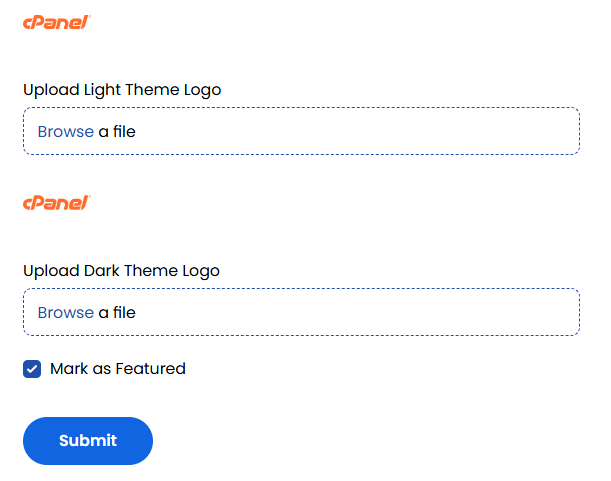
- You can upload the theme logo for light and dark themes.
- Toggle Mark as Featured if the app should be promoted on the dashboard. Click Submit to add the new app to the marketplace.
- You can also update the app, update its version, update environment variables, or delete it if needed. Click on the three dots next to the marketplace app to modify.
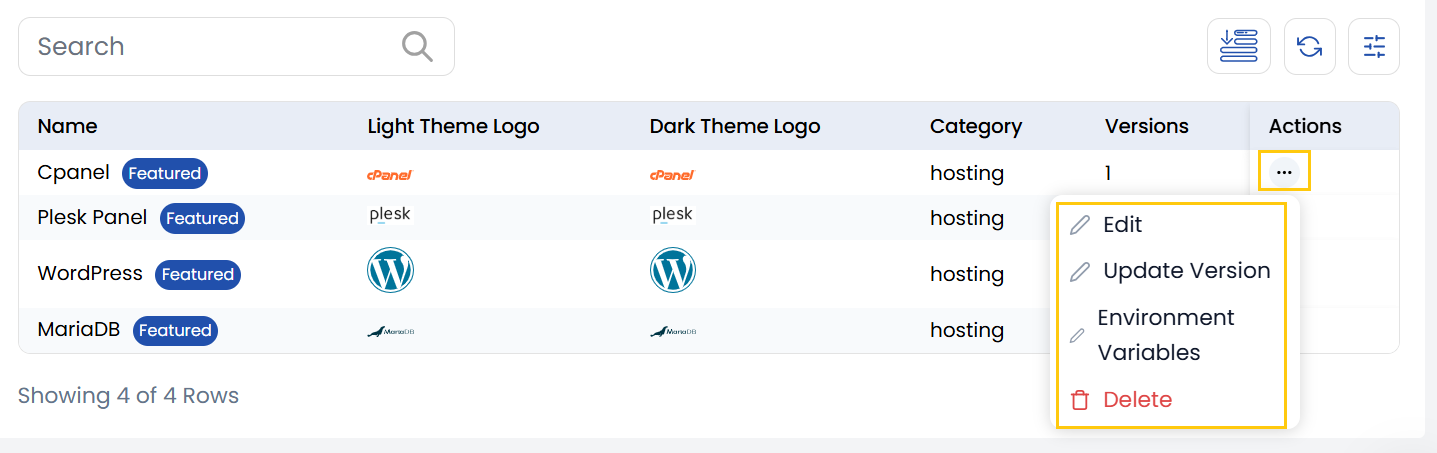
Update Version
- To update version, click on the three dots next to the marketplace app to modify and select Update Version.
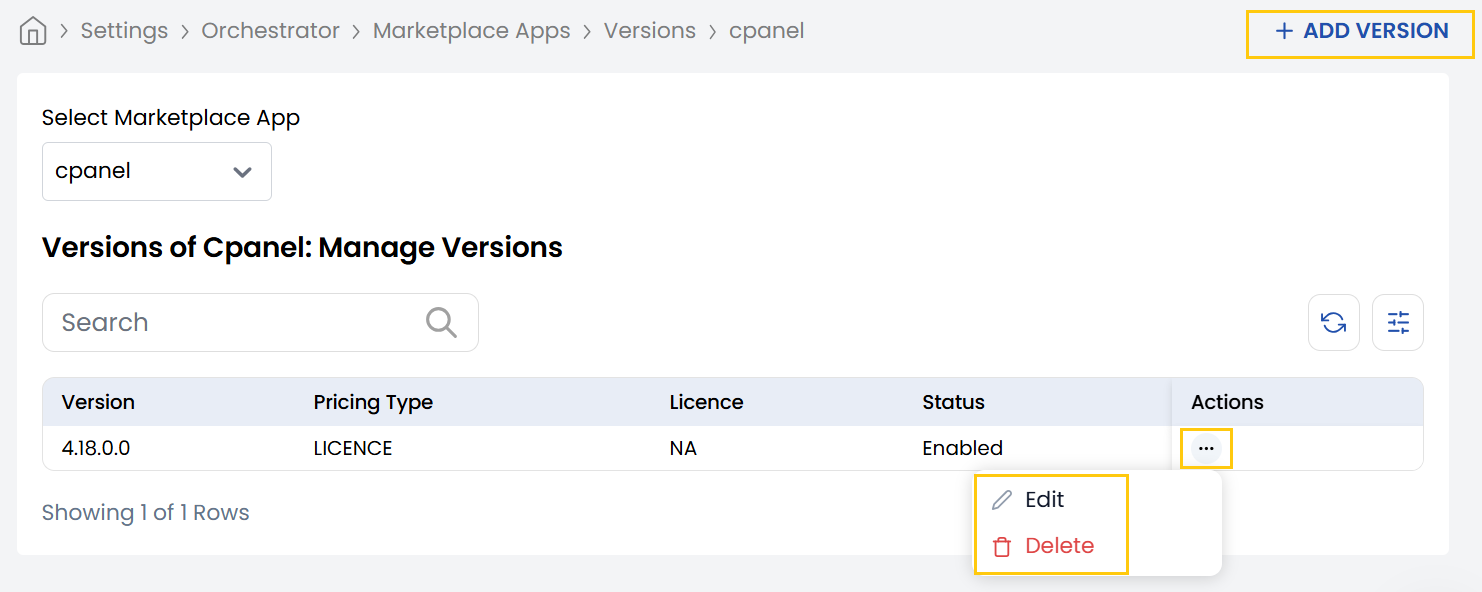
- You can edit and delete the existing versions by clicking on the three dots next to it.
- Click on Add Version to add new version to the versions to the marketplace app.
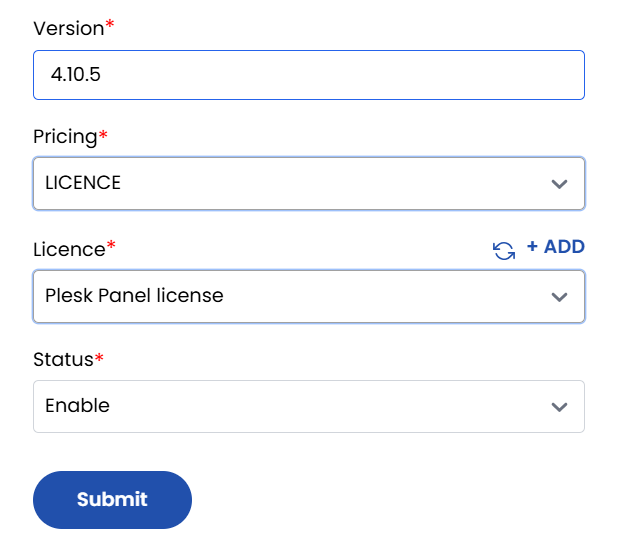
- Enter the name of the version, select the pricing as free or license and choose the license for this version.
- Choose status as Enable/Disable and click on Submit.
Update Environment Variables of Marketplace App
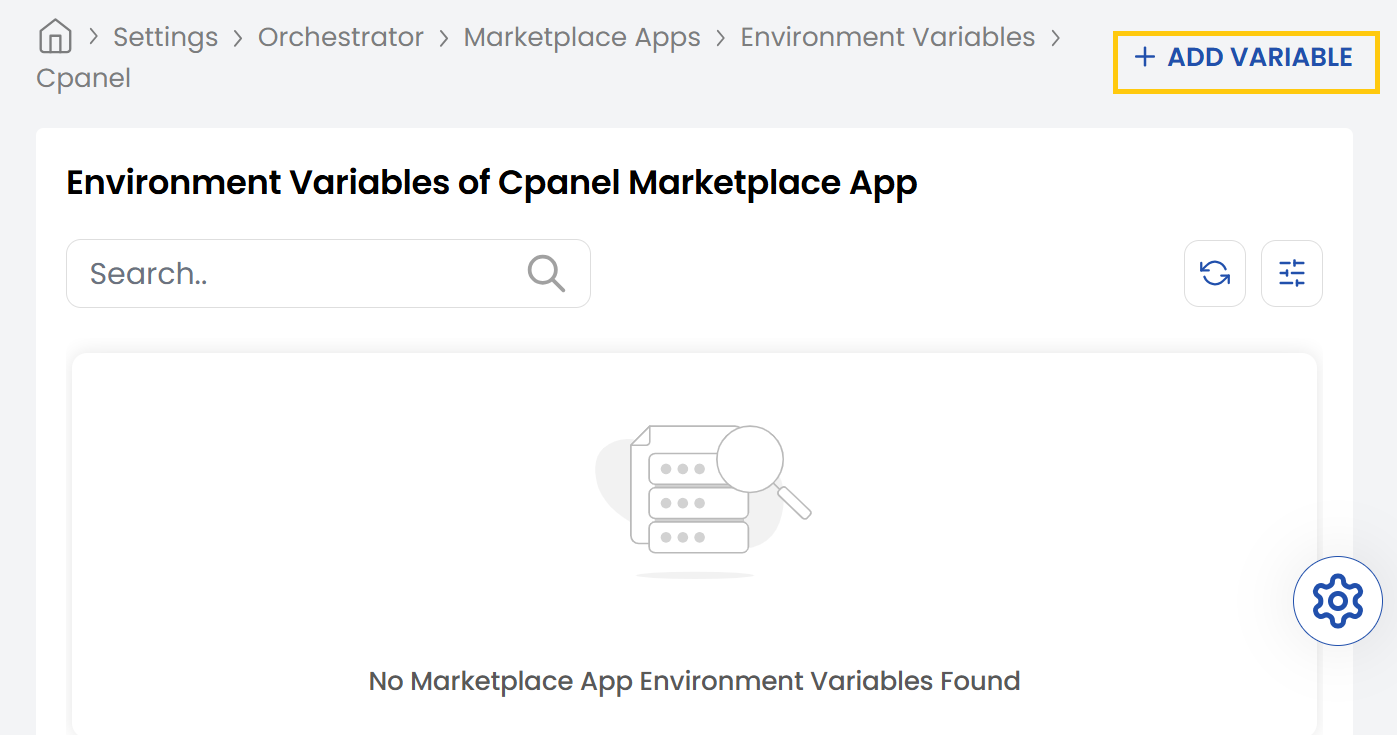
- To update environment variables of marketplace app, click on the three dots next to the marketplace app to modify and select Environment Variables.
- Click on Add Variable to add new variable to the marketplace app.
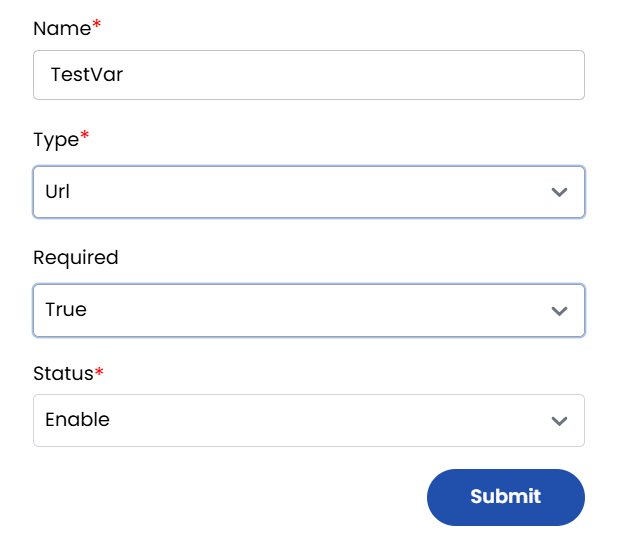
- Enter the name and type of variable. You can choose types like URL, Text, Password, etc.
- Select required as True or False. Choose the status as Enable/Disable and click on Submit.